Monday, June 18, 2012

Awesome/Crazy DIY PC Case Mods!


World’s Most Awesome/Crazy DIY PC Case Mods!

PC modders have been very creative and a bit *crazy* ever since birth of desktop computers back in the 80s.  Here’s a collection of world’s most “awesome” PC case mods you won’t want to miss.
http://www.silentpcreview.com/files/images/woodcase/woodcase12.jpg
1. We will start with a rather modest PC Case mod, completely made out of wood.  This could accent your home’s wooden furniture well plus you can even make something more stylish such as seen below:
http://zedomax.com/blog/wp-content/uploads/2007/04/pc-furniture-case-2.jpg
(The Wooden PC Case mod from a modder in South Korea.)
http://hackedgadgets.com/wp-content/2/_microwave_PC_Case.jpg
2. The Microwave PC Mod is actually rather cool with the door of the microwave converted into LCD display while microwave controls function as PC power buttons and whatnot.  This could be the perfect computer for your stylish, modern kitchen, all the while disguising the fact there’s actually a computer underneath.  Of course, it would be super cool if you can actually use the microwave too.  I bet there’s a way to do that, anyone up for the challenge?
http://metku.net/mods/passive/kuva26.jpg
3. Next up is the Passively-cooled PC Mod, basically a PC case surrounded with cooling fans all-over.  I find this would be great way to build your next overclocking project PC where you need to cool the CPU down drastically.  There’s other methods of cooling too but this one certainly brings style out there while keepin’ it all cool.
http://images.tweaktown.com/content/1/5/1568_62.jpg
4. The Suitcase PC Case mod is probably one of the easiest to carry as it’s embedded in a hard-cover case with a sturdy handle.  If I am traveling a lot and I need the power of Intel Core i7s for rendering 1080P HD videos, I will certainly build myself one of these.  Even if I am not, this could be the ultimate gamer’s travel PC case when laptops just can’t cut it.
http://pcgamingcenter.ugo.com/images/case-modding/whisky-pc-1.jpg
5. What if you could fit a whole PC in your favorite bottle of alcohol?  Check out this Whiskey PC which does exactly that in a bottle of Ballantines.
http://www.envador.com/cases/ToiletPC/ToiletPC_at_QuakeCon2001.JPG
6. Next up is the Toilet PC Case mod featuring a PC fitted inside a real toilet.   Of course, it’s too bad you can’t actually use the toilet itself to poop anymore but this could be a great mod for those of you who poop a lot.
http://images.bit-tech.net/content_images/2006/05/wmd_part2_g-gnome_case_mod/733.jpg
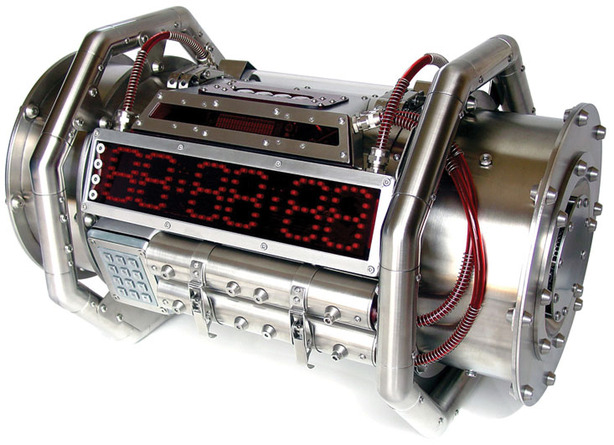
7. The WMD (Weapon of Mass Destruction) PC case mod is probably not a good thing to carry around in public as it might actually be regarded as exactly that but it certainly is one of the most creative PC case mods we have seen.
http://www.envador.com/cases/Cyberpumpkin/P1010057.JPG
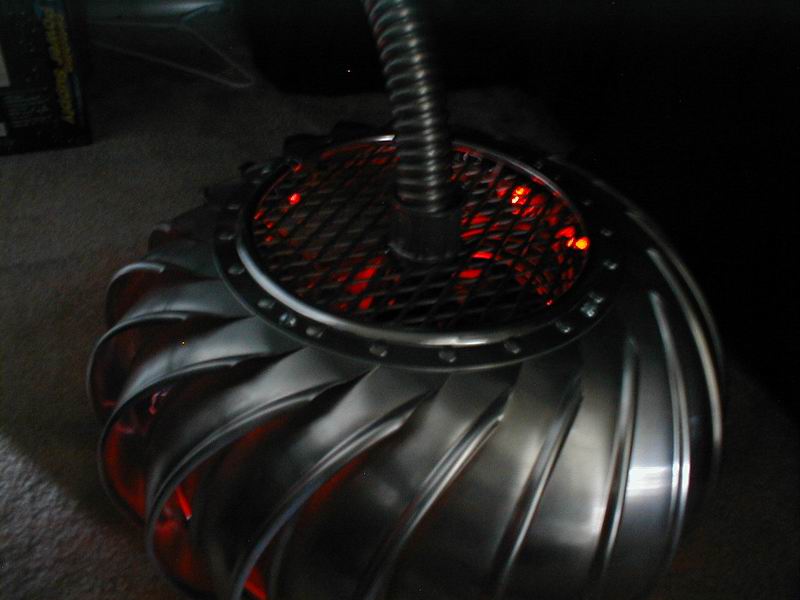
8. The Wind Turbine PC case mod reminds me of another powerful weapon of some sort with its crazy glowing LEDs.   It’s supposed to be a “cycber pumpkin” and it certainly does look like one.
http://www.casemodgod.com/ModProjectLogs/BatmobileTumbler/BatmobilePCDarkfront3-4.jpg
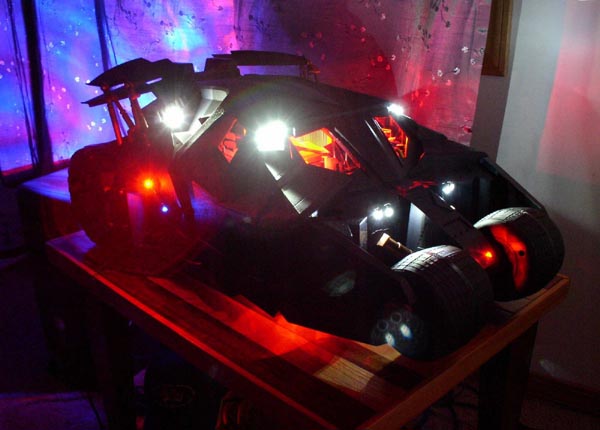
9. The Batmobile Tumbler PC case mod is certainly a must-do for any die-hard Batman fans like myself.  Now, if the PC could power itself with a battery and the wheels were operational, that’d be somethin’.
http://zedomax.com/blog/wp-content/uploads/2008/08/lego-pc-computer.jpg
10. The Lego PC case mod featured here is a must-see as it’s super-clean, could be a great resource of insight and inspiration to lego lovers/addicts out there.
http://zedomax.com/blog/wp-content/uploads/2009/03/pyramid-pc.jpg
11. The Pyramid PC case mod is lovely, with see-through surfaces so you can always tell if your hardware is working right.  Plus, this pyramid PC case mod will certainly brighten up your desk and room, just don’t start a pyramid-scam by selling these.
http://hackedgadgets.com/wp-content/2/_wii_mod_1kd8.jpg
12. The Wii PC case mod is one of my favorites and could go well as your entertainment/media PC near your TV.   Of course, don’t forget ASUS actually sells something similar called EeeBoxes so….

Breaking News

http://www.pcworld.com/

Saturday, June 9, 2012

Dual-Boot Windows 7 And Windows 8-How To:

Keen to try out Windows 8, but aren’t quite ready to give up on Windows 7 just yet? Follow this fun easy guide to get the best of both worlds.

Creating The VHD

To create the VHD, go to a run prompt by pressing Win+R, and type diskmgmt.msc.

An MMC console will appear, and will have the Disk Management snap-in pre-loaded.

To create a new VHD, click on the action button in the menu  bar, and select Create VHD.

Now you need to choose a location for the VHD file and set the size, which should be no less than 20 GB. You should probably choose a fixed size for best performance.

Windows will then create the VHD, the progress of this can be viewed in the Status Bar of the MMC snap-in.

Once the disk is created it will be in the list of partitions in the Disk Management console. You’ll want to initialize the disk by clicking on it and selecting initialize.

Leave the partition style at MBR(Master Boot Record) and click ok.

Once the disk has been given a partition style, we now need to create an actual volume on the partition. To do this right click on the black space and select “New Simple Volume”.

A wizard will open, you can just accept all the defaults until you get to this screen. Here change the Volume label to “Windows 8”, then click next and finish.

Now you have a new VHD file that is acting like a real hard drive.

Installing Windows 8 On The VHD

The first thing you need to do is open PowerShell as an administrator by opening Start Menu->All Programs->Accessories->Windows Powershell, right-clicking on the Windows PowerShell shortcut, and choosing Run as Administrator.

When PowerShell launches you will need to change the execution policy to allow you to run scripts. To do this, you need to type “Set-ExecutionPolicy RemoteSigned”. You will be given a security notice just type “Y” and press enter to accept. Once you have done this, leave the PowerShell window open as we will be using it again just now.

Next you need to download this script from MSDN, and then move it to the root of the C: Drive. Note that you could move it somewhere else if you want, but just change the rest of the instructions to use the alternate path.

Right-click on the file and select properties.  Click the unblock button in the bottom right hand corner.

Now you will need to mount the the .ISO file that you downloaded from the Windows Developer website. If you don’t know how to mount an ISO file check out our guide. Once you have mounted the .ISO image switch back to the PowerShell  window. Now type “CD C:\” to switch to the root of the drive.

Now type  the following command into the shell window:

.\Install-WindowsImage.ps1 –WIM D:\Sources\Install.wim –Apply –Index 1 –Destination I:\

You should substitute the drive letter that comes after the –WIM for the drive of the mounted DVD image, and substitute the destination drive letter, in our case this is E:\ for the VHD that you created in the first section of this article. Then press enter.

Once it has completed you will be notified.

Now open an elevated command prompt, and type bcdboot.exe I:\Windows (assuming that I:\ is the drive with Windows 8 on it).

Now when you boot Windows you will be greeted with the new OS Choosing Screen.

Seamless File Sharing

The last thing you will want to do is make your files available to both operating systems. To do this boot into your new Windows 8 installation and navigate to:

C:\Users\[Your User Name]

Now right click on the Contacts folder and select Properties from the context menu. Switch over to the location tab and click on the move button.

Now navigate to the Contacts folder on your Windows 7 drive, this can be found at the same path, however your user name might be different to the one you used in Windows 8.

Click on the ok button and your good to go, repeat this for the following folders:

  • Desktop
  • Downloads
  • Favorites
  • Links
  • My Documents
  • My Music
  • My Pictures
  • My Videos

That’s all there is to it.

Materials Request

Please sign in